
Welcome (to your new) Home
Quiver 4.2.0 is live on the App Store and Google Play. It's the biggest visual change we've made in years, and the first release where the app's front page is something you build rather than something we hand you.

Every screen, reworked — on phone and tablet
We went through the whole app. Posts, Search, profiles, Messages, Events, Hall of Fame, Ask Lyra — all of it redrawn, and all of it reworked for both Light and Dark mode rather than one being the real design and the other an afterthought.
Tablets get their own layouts now instead of a stretched phone. On an iPad in landscape, Home lays out as a grid; on a phone it stacks. Same content, arranged for the screen it's actually on.

A Home you arrange yourself
Home pulls together what's happening on Quiver — your profile and stats, the week's numbers, the hottest posts, new members near you, where new members are joining from, upcoming events, quivers you've received, Hall of Fame, and the latest from this blog.
That's a lot, and not all of it matters to everyone. So it's yours to arrange:
- Reorder it. Open the arrange sheet from the sliders icon in the Home bar and drag sections into the order you want.
- Resize it. Long-press any section header and pick its width — small, half, medium, or full. The section stays exactly where you put it; everything else packs around it.
- Hide what you don't use. Switch a section off and it's gone.
- Start over. Reset puts it all back the way it shipped.
One thing worth knowing: the order you set is per device, so your phone and your tablet can be arranged differently. Hiding a section, though, hides it everywhere.
Hall of Fame
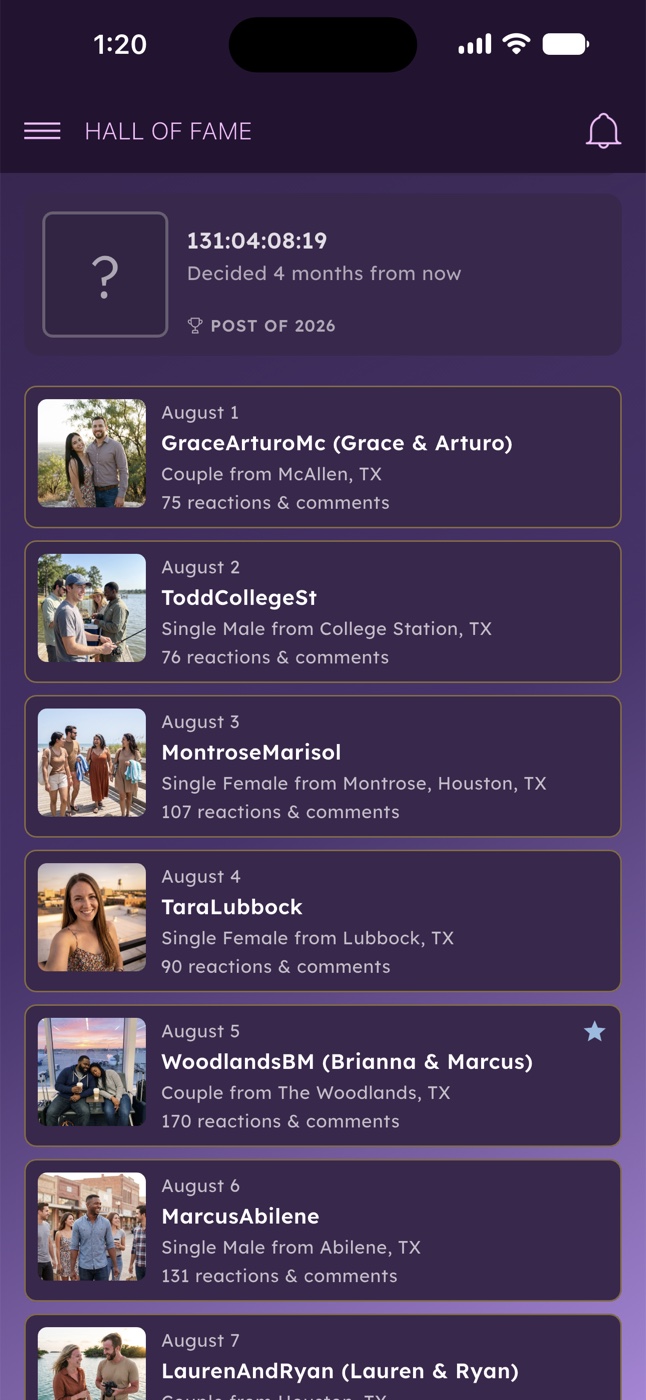
Every day, the post with the most reactions and comments wins the day. Hall of Fame collects them — Post of the Day, of the Week, of the Month, and of the Year — and you can browse the whole thing back to 2014. There are streaks too: the longest runs of the week and the month.
Winners keep it. A winning post carries its badge, and so does the profile that made it.
One fix worth calling out
Photos could occasionally fail to upload and land as a broken image — most often when you were sending one in chat. The upload failed quietly and the empty image went anyway, so the first you knew about it was the other person telling you.
That's fixed. A failed upload now tells you right away and offers to retry.
Update from the App Store or Google Play to get it. If your app updates automatically, you may already have it — check for a blue-purple Home with your profile at the top left.